







-
Video Library 0
-
Product Highlights 1
-
-
Troubleshooting 4
-
Beton Fire Pits 11
-
Manuals & Documentation 1
-
Product Categories 0
-
Fire Glass & Alternatives 4
-
Fire Pits 22
-
BBQ 14
-
Fireplaces 27
-
DIY Fire Pits 9
-
Patio Furniture 5
-
Patio Heaters 9
-
Patio Umbrellas 8
-
-
Customer Service 0
-
Shipping 6
-
Returns & Exchanges 5
-
Order Status 2
-
Warranty Claims 2
-
How can I check the status of my order?


Instructions on how to login and check the status of your order.
Step 1: You will need to log into your account.
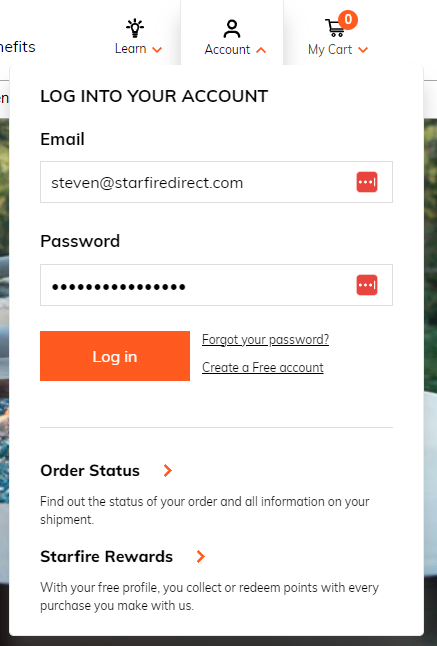
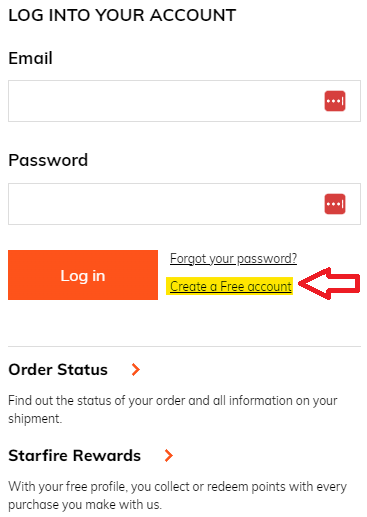
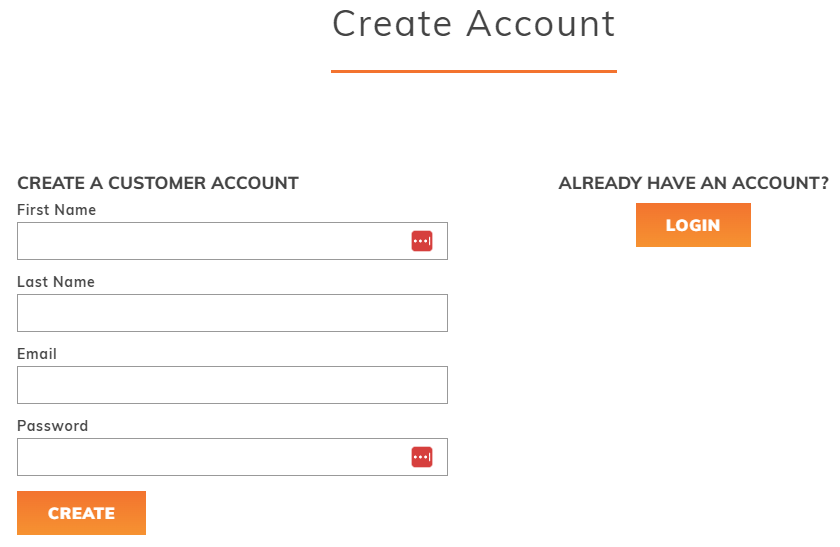
*If you do not have an account, you can create an account by clicking "Create Account" and following the prompts or by using your order confirmation email to create an account.
Step 2: Once logged in, your portal will look something like this:

You will be able to see:
- Order History
- Order Numbers
- Dates orders were placed
- Payment Statuses
- Order Statuses
- Estimated ship dates
- Totals
*Selecting the Order # or Estimated Ship date will take you to the same screen:
Step 3: Order Details

Here you can see details of an individual order such as:
- The product(s) (SKU, tracking, status)
- Estimated ship dates
- Statuses
- Tracking Number(s) if shipped
- Price(s) paid
- Qty(s) of a single item & Total based on that quantity
- At the bottom of the page, you will be able to find the total order amount, billing, and shipping address.
Customer Login Page <-- Click here
Create an Account Page <-- Click here
If you have any further questions, feel free to contact us via email, chat, or phone.
- Starfire Direct Team


esc